On-device by defaultOriginals stays visibleReview before clean export
PDF Ready flow
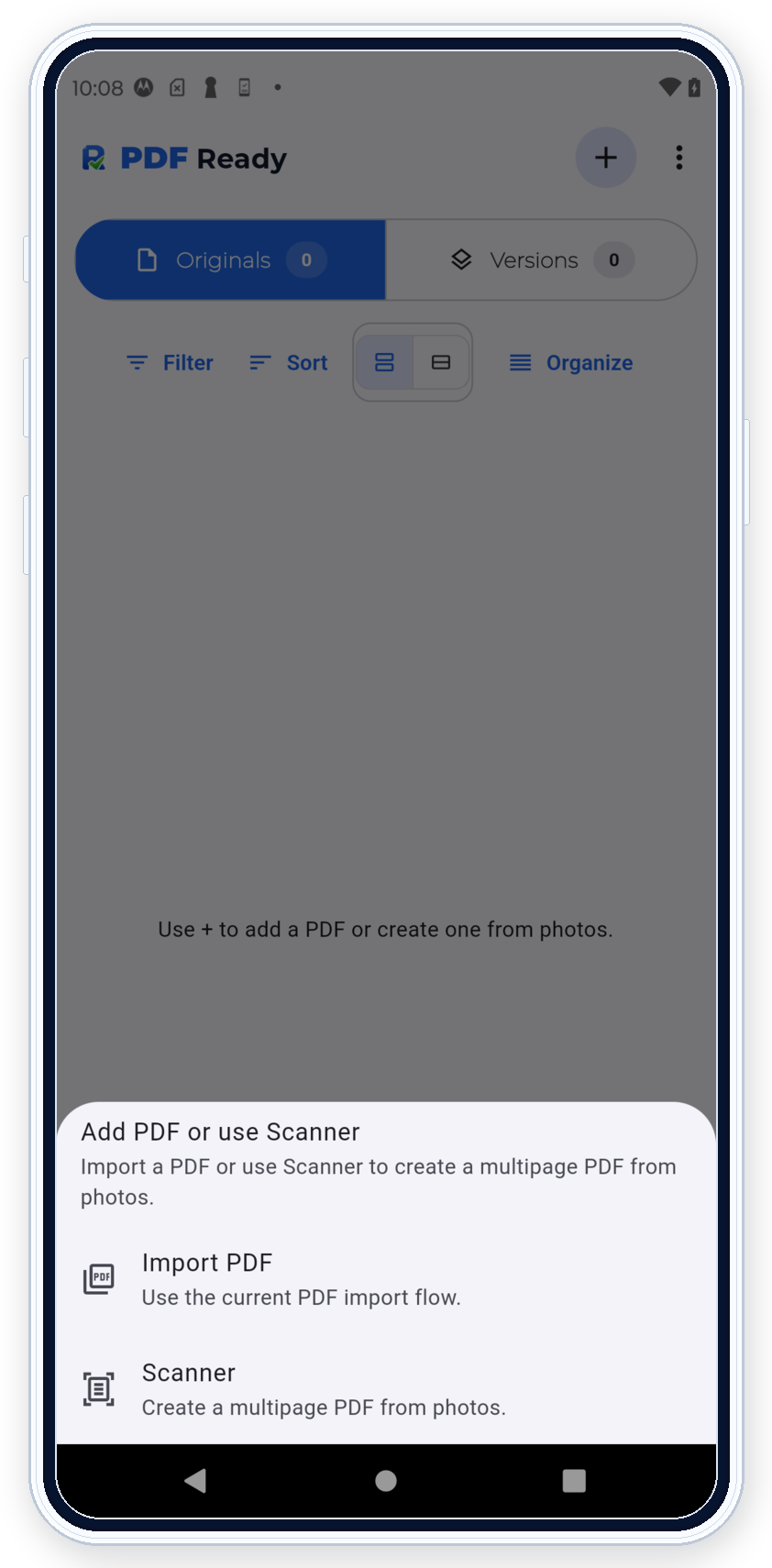
Import or scanStart from a PDF or with the scanner.OriginalsThe source file stays here.PrepareChoose GENERAL, IRCC, or CEAC.
GENERALIRCCCEAC
Pick size and options
ResultReview the prepared result here.Clean exportSave, share, or upload the final copy.
Import or scan starts the flow from a PDF or the scanner. The source file stays in Originals. Prepare is where you choose GENERAL, IRCC, or CEAC, then pick size and options. PDF Ready then creates a prepared result for review, and clean export is the final copy ready to save, share, or submit.
Import or scan, keep the source in Originals, use Prepare to create a prepared result, review it, and clean export only at the end.Import a PDF or scan with the camera to start.
Step 1
Start from a PDF or scanner
Import a PDF when you already have the file, or use the scanner when the document still starts as photos.
Step 2
Originals and Versions
Originals keeps the starting file. Versions holds the prepared results you review next.
Originals Keep the starting file visible so the next attempt can begin from the source again.Versions Review prepared results here before you decide which one should move to clean export.
What changes next: Prepare starts from Originals. Review the prepared result next. Versions is where PDF Ready keeps prepared results when you need to compare them.
From Originals, you can tap the file row to open it, or use the row menu and choose Prepare for portal.
Step 3
Open Prepare from Originals
Start Prepare from the original file, not from a generated result. You can tap the file row to open that document screen first, or use the row menu if you want to jump straight to Prepare for portal. That keeps the source file available if you need another try later.
Choose the portal first, then open Size limit. More options stays below it and shows the three main toggles only when the upload needs extra settings.
Step 4
Adjust options only when needed
Pick the portal first. Then open Size limit and choose the target that matches the upload you are preparing. Open More options only when the document or portal really needs something extra. The three main toggles stay below the portal and size controls.
GENERAL is for exact-size targets when you only know the upload limit.
IRCC is the portal path with 2 MB, 3 MB, and 4 MB choices.
CEAC is the conservative 2 MB, compatibility-first path.
Review the prepared result before clean export.
Step 5
Review the result
Check the prepared result for size, readability, warnings, and compatibility before deciding whether it is the one to keep. If you generate more than one try, PDF Ready can keep those results in Versions for comparison.
Step 6
Use clean export only at the end
Clean export is the final copy ready to save, share, or submit. It comes after review, not before it.
If the file should stay untouched, PDF Ready keeps the original path with a warning.
SAFE-MODE / no-touch
Keep the original path for no-touch files
If a file should stay untouched, PDF Ready warns you and keeps the original path instead of forcing a transformed result.